

Cloud-based chatbots are convenient, but they come with two major drawbacks: recurring monthly subscription fees and serious data privacy concerns. Every time you paste a client contract, proprietary codebase, or internal financial sheet into a browser-based chatbot, that data travels across external servers. That is why thousands of developers, writers, and businesses are switching to the best local AI tools to run powerful language models directly on their own laptops and desktops.
When you run AI locally, your prompts, legal contracts, financial spreadsheets, and source code never leave your device. Better yet, you pay zero API fees and can work completely offline—whether you are on a long-haul flight, working in a remote field location, or operating inside a strict corporate network.
Thanks to rapid breakthroughs in model quantization and Apple Silicon or NVIDIA GPU acceleration, you no longer need an expensive server rack to run capable artificial intelligence. In this comprehensive guide, we evaluate the best local AI tools available today, breaking down their architecture, setup process, hardware requirements, pros and cons, and ideal real-world use cases.
Why Switch to Best Local AI Tools in 2027?
Before diving into the software, it helps to understand why offline AI has evolved from a niche developer hobby into a mainstream alternative to cloud platforms like the best local AI tools.
1. Complete Data Privacy and Regulatory Compliance
For lawyers, healthcare consultants, financial analysts, and software engineers, sending confidential client files to third-party cloud APIs often violates non-disclosure agreements (NDAs) or strict compliance frameworks. Running models offline guarantees zero telemetry, zero cloud logging, and zero risk of your proprietary files being stored on remote servers.
2. Zero Monthly Subscriptions or Token Limits
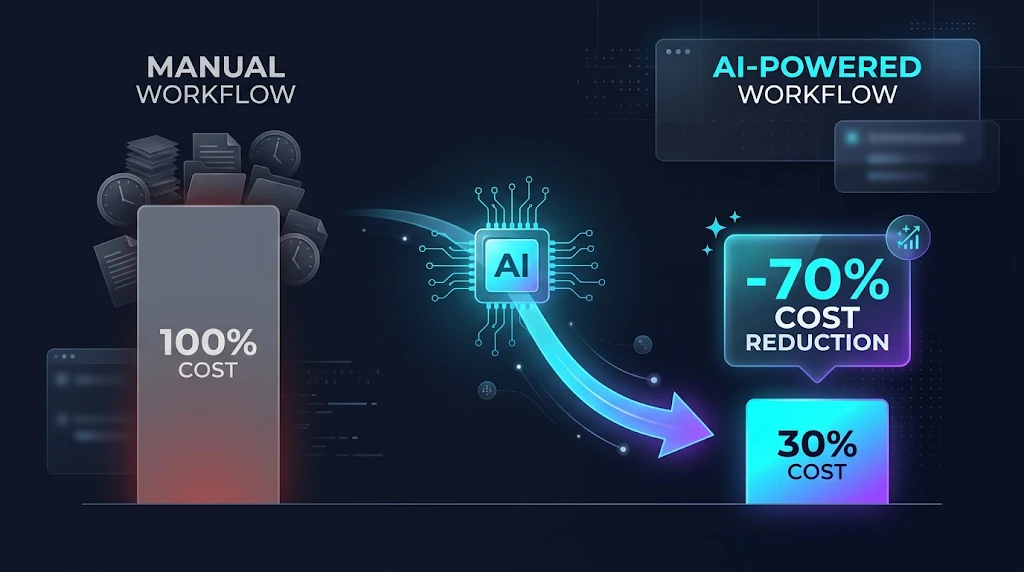
Heavy AI users easily spend $20 to $200 per month across multiple SaaS subscriptions and API billing tiers. With local software, you download an open-weight model once and run unlimited queries, document summaries, and code generations for free.
3. True Offline Reliability Anywhere
Cloud AI stops working the moment your Wi-Fi drops or a provider experiences an outage. Offline AI tools run directly on your laptop’s CPU, GPU, or unified memory, giving you instant access to an intelligent assistant on airplanes, trains, or air-gapped networks.
4. Full Control Over Model Behavior and Updates
Cloud providers frequently update their models silently, which can suddenly change writing tone, add strict refusals, or alter coding accuracy. When you host models locally, you lock in the exact model version and system prompt that works best for your workflow.
1. LM Studio: Best Local AI Tool for Beginners and Visual Workflows
If you want a polished, user-friendly interface without ever touching a command-line terminal, the LM Studio desktop app is the easiest starting point. It provides a sleek desktop dashboard where you can search, download, configure, and chat with open-weight models in just a few clicks.
Key Capabilities
- Built-In Model Discovery and Compatibility Check: LM Studio connects directly to Hugging Face and automatically detects your computer’s RAM and GPU VRAM. Before you download a massive file, it clearly labels whether a model will fit completely in GPU memory, partially offload, or fail to load.
- Bionic Local Agent: Designed for knowledge workers and developers, Bionic lets you create documents, slides, PDFs, and software workflows using local or frontier open models inside an organized workspace.
- One-Click Local Server: With a single toggle in the Developer tab, LM Studio spins up an OpenAI-compatible local API endpoint (
http://localhost:1234). This lets you connect third-party writing apps, browser extensions, or coding editors to your offline model effortlessly. - Granular Hardware Controls: Advanced users can adjust GPU layer offloading, context window length, temperature, and Flash Attention directly through visual sliders.
Pros and Cons
- Pros: Intuitive graphical interface, zero terminal setup required, accurate VRAM compatibility indicators, and cross-platform support for Windows, macOS, and Linux.
- Cons: Closed-source desktop wrapper (though free for personal and commercial use) and slightly heavier memory footprint than pure terminal runners.
- Pricing: Free.
- Best For: Non-technical users, writers, researchers, and analysts who want a visual interface with pro-level controls.
2. Ollama: Best Local AI Tool for Developers and Speed
For engineers, automation builders, and power users who prefer lightweight terminal commands, the Ollama official platform is the undisputed industry standard. It packages model weights, runtime configurations, and GPU drivers into a single fast executable for macOS, Windows, and Linux.
Key Capabilities
- One-Command Model Setup: Instead of hunting through dozens of GGUF file variants, you simply type
ollama runfollowed by a model name in your terminal. Ollama automatically downloads the optimized weights and starts an interactive chat session in seconds. - Background System Service: Ollama runs quietly in your system tray as a lightweight REST API server. It loads models into memory only when needed and unloads them automatically when idle to free up RAM.
- Custom Modelfiles: Developers can create simple text-based
Modelfiletemplates to bake in custom system prompts, temperature settings, and persona rules for specific tasks like SQL generation or log parsing. - Massive Ecosystem Integration: Almost every modern open-source AI tool—including VS Code coding extensions, local RAG apps, and home automation hubs—supports Ollama out of the box.
Pros and Cons
- Pros: Extremely fast startup, minimal CPU/RAM overhead, open-source codebase, and universal compatibility with developer tools.
- Cons: No built-in rich graphical chat interface out of the box (requires pairing with a UI like Open WebUI or AnythingLLM for visual chat).
- Pricing: Free and open source.
- Best For: Software developers, DevOps engineers, and automation enthusiasts building local AI pipelines.
3. AnythingLLM: Best Local AI Tool for Chatting with Documents
Standard chat interfaces only let you paste short snippets of text into a prompt box. AnythingLLM solves this by turning your computer into a private Retrieval-Augmented Generation (RAG) engine. It lets you upload entire folders of PDFs, Word documents, CSVs, and codebases into isolated workspaces.
Key Capabilities
- Private Document Chat with Inline Citations: Drop 500-page technical manuals, legal contracts, or financial statements into a workspace. AnythingLLM chunks, embeds, and indexes everything locally using a built-in vector database (LanceDB), then answers your questions with clickable citations pointing to the exact source file.
- Built-In No-Code AI Agents: Create local agents capable of summarizing files, extracting structured data, running scheduled jobs, and performing local web searches without writing a single line of Python.
- Multi-User and Permission Support: While single users love the desktop app, small teams can deploy AnythingLLM via Docker to share private company knowledge bases across an office network.
- Flexible Engine Routing: Use its built-in local LLM engine right away, or point it directly to your existing Ollama or LM Studio server for even faster inference.
Pros and Cons
- Pros: Purpose-built for private document analysis, includes a built-in vector database, actively maintained with frequent updates, and supports modern agent workflows.
- Cons: Indexing thousands of large PDFs for the first time can take several minutes on CPU-only laptops.
- Pricing: Free and open source (MIT core).
- Best For: Researchers, lawyers, accountants, students, and teams handling confidential documents.
4. Jan AI: Best Open-Source ChatGPT Alternative
Many users want to leave cloud chatbots behind without relearning how to use a chat interface. Built as a clean, open-source replacement for web-based AI tools, Jan AI gives you a familiar ChatGPT-style desktop experience while keeping all conversations and model files stored locally on your hard drive.
Key Capabilities
- Clean, Distraction-Free Chat UI: Features conversation folders, system prompt presets, markdown code highlighting, and instant model switching in a modern layout.
- Hybrid Local and Cloud Flexibility: Run offline open-source models for private tasks, or securely plug in cloud API keys inside the exact same interface when you need massive frontier-model reasoning.
- 100% Local File Storage: Every chat thread, preference, and downloaded model lives in plain, readable folders on your computer, making backups and migrations effortless.
- Hardware Acceleration: Supports NVIDIA CUDA, AMD Vulkan, and Apple Silicon Metal acceleration out of the box.
Pros and Cons
- Pros: Completely open source, clean and familiar interface, zero telemetry, and seamless hybrid cloud/local switching.
- Cons: Fewer advanced server and quantization tuning controls compared to LM Studio.
- Pricing: Free and open source.
- Best For: Everyday writers, marketers, and professionals transitioning from cloud subscriptions to private desktop AI.
5. llama.cpp: Best Lightweight Engine for Maximum Hardware Efficiency
Under the hood, almost every popular desktop app on this list relies on llama.cpp. Written in pure C and C++ with zero heavy Python dependencies, it is engineered to squeeze maximum token-per-second speed out of consumer CPUs, Apple Silicon unified memory, and discrete GPUs.
Key Capabilities
- GGUF Quantization Standard:
llama.cpppioneered the GGUF format, which compresses massive 16-bit neural networks down to 4-bit or 8-bit weights. This allows powerful models to fit comfortably inside standard 8GB or 16GB RAM laptops with minimal loss in reasoning quality. - Zero Bloat: Runs directly from the command line or via its lightweight built-in
llama-serverweb interface. - Split-Layer Execution: If a model is slightly too large for your GPU’s VRAM,
llama.cppseamlessly splits the model layers between your GPU and system RAM so it still runs reliably. - Broad Hardware Support: Delivers industry-leading optimization across Windows, Linux, macOS, Raspberry Pi, and even mobile processors.
Pros and Cons
- Pros: Fastest raw inference efficiency, tiny disk footprint, and absolute control over every memory and threading parameter.
- Cons: Requires comfort with command-line flags and compiling or downloading release binaries manually.
- Pricing: Free and open source (MIT License).
- Best For: Performance tinkerers, embedded developers, and users optimizing older or constrained hardware.
6. GPT4All: Best CPU-First App for Older Laptops
No 6 as choice for best local ai tools are Developed by Nomic AI, GPT4All was designed specifically for everyday users who do not own an expensive gaming laptop or workstation GPU. It prioritizes CPU execution so standard office laptops can still run private offline AI tasks reliably.
Key Capabilities
- No Dedicated GPU Required: Optimized to run smaller quantized models directly on standard Intel, AMD, and Apple processors without requiring CUDA drivers.
- LocalDocs Feature: Point the app to a local folder containing
.txt,.pdf, or Markdown files, and GPT4All automatically indexes them for offline question-answering. - Simple Desktop Installer: Straightforward point-and-click installation with curated model recommendations built right into the welcome screen.
Pros and Cons
- Pros: Very easy to install on standard office laptops, works without a GPU, and includes built-in local folder chat.
- Cons: Development pace has slowed significantly compared to newer competitors like AnythingLLM and LM Studio, meaning newer model architectures may require manual configuration or alternative apps.
- Pricing: Free and open source.
- Best For: Students and budget laptop owners running older CPU-only hardware.
7. Open WebUI + Ollama: Best Self-Hosted Team Interface
If you have a powerful desktop workstation or home server and want to share it with your family, research group, or small office team, pairing Ollama with a self-hosted web portal like Open WebUI creates a private, multi-user AI platform on your local Wi-Fi network.
Key Capabilities
- Multi-User Access Control: Create individual logins with role-based permissions so team members can keep their chat histories separate while sharing the same backend GPU hardware.
- Collaborative Prompt Library: Save standardized system prompts for code reviews, customer support drafts, or financial report formatting across your entire group.
- Side-by-Side Model Arena: Run two different local models simultaneously on the same prompt to compare speed, formatting, and accuracy before choosing a winner.
- Web Search & Document Upload: Integrates local document parsing and optional private search engines right inside the browser tab.
Pros and Cons
- Pros: Feels identical to a full enterprise cloud AI portal, supports multiple users on one machine, and offers rich customization.
- Cons: Requires Docker or Python environment setup to deploy and maintain.
- Pricing: Free and open source.
- Best For: Small businesses, startups, and home-lab enthusiasts sharing one powerful GPU workstation.
Comparison Table: Best Local AI Tools at a Glance
| Tool | Primary Strength | Interface Type | GPU Required? | Open Source? | Price |
| LM Studio | Easiest visual model manager & API | Desktop GUI | Optional (Recommended) | No (Freeware) | Free |
| Ollama | Fastest CLI & developer ecosystem | Command Line | Optional (Recommended) | Yes (MIT) | Free |
| AnythingLLM | Private RAG & document workspaces | Desktop GUI / Docker | Optional | Yes (MIT Core) | Free |
| Jan AI | Clean ChatGPT-style desktop app | Desktop GUI | Optional | Yes (AGPLv3) | Free |
| llama.cpp | Maximum raw engine efficiency | CLI / Web Server | Optional | Yes (MIT) | Free |
| GPT4All | CPU-friendly offline chat | Desktop GUI | No (CPU-first) | Yes (MIT) | Free |
| Open WebUI | Multi-user local team portal | Browser (Localhost) | Recommended | Yes (MIT) | Free |
Local AI vs. Cloud AI: Real Cost & Privacy Breakdown
Many professionals wonder whether switching to offline software actually saves money or compromises output quality. The table below highlights how the best local AI tools stack up against paid cloud subscriptions over a 12-month period.
| Factor | Local AI Tools (Ollama / LM Studio) | Cloud AI Subscriptions (ChatGPT / Claude Pro) |
| Annual Software Cost | $0 (100% free open-weight models) | $240 – $2,400+/year per user |
| Data Privacy | 100% On-Device (Zero external transmission) | Processed on vendor cloud servers |
| Internet Requirement | None (Works completely offline) | Always required |
| Usage & Rate Limits | Unlimited (Bound only by your hardware) | Strict message caps during peak hours |
| Maximum Reasoning Power | Great for 80% of daily tasks (7B–32B models) | Best for massive frontier reasoning (100B+ models) |
For most daily tasks—such as summarizing meeting notes, drafting emails, refactoring Python scripts, or querying private PDFs—modern local models deliver near-frontier quality with zero ongoing cost.
Best Open-Weight Models to Pair with Best Local AI Tools
Software like Ollama and LM Studio are simply the engines; the actual intelligence comes from the open-weight model you load inside them. Choosing the right model size for your hardware is the secret to getting fast, accurate responses:
- Lightweight Models (3B to 4B Parameters): Ideal for 8GB RAM laptops. Models in this tier generate text at lightning speed and handle email rewrites, grammar checks, and short note summaries effortlessly.
- Everyday Sweet-Spot Models (7B to 9B Parameters): The best balance of speed and intelligence for 16GB RAM laptops or 8GB VRAM GPUs. Great for coding assistance, structured JSON extraction, and summarizing multi-page PDFs.
- Pro Reasoning & Coding Models (14B to 32B Parameters): Designed for 32GB+ Unified Memory Macs or 16GB–24GB GPU workstations. Models like Qwen, Gemma, and DeepSeek in this range rival paid cloud models in complex logic, math, and multi-file code generation.
When downloading models inside LM Studio or llama.cpp, look for Q4_K_M quantization. This 4-bit compression standard cuts memory usage by more than half while preserving roughly 98% of the original model’s intelligence.
Step-by-Step Guide: How to Set Up Your First Best Local AI tools in 5 Minutes
If you have never run an AI model offline before, follow these five simple steps using LM Studio:
- Download and Install: Visit the official LM Studio website and download the installer for Windows, macOS, or Linux.
- Check Your Hardware Tier: Open the app and click the Search (Discover) tab. LM Studio will automatically display your system’s available RAM and GPU memory.
- Download a Quantized Model: Search for a popular 7B or 8B model (such as Llama, Qwen, or Gemma) and select the
Q4_K_Mvariant marked as compatible with your hardware. - Load the Model: Switch to the Chat tab, click Select a model to load at the top, and wait a few seconds for the weights to load into memory.
- Turn Off Wi-Fi and Test: Disconnect from the internet and ask the AI to summarize a confidential document or write a script. You now have a completely private, zero-cost AI assistant running locally.
Hardware Requirements: What Laptop Do You Need to install the best local ai tools?
According to recent local AI hardware benchmarks, your system memory capacity and memory bandwidth matter far more than raw CPU clock speed when running offline models.
Here is a practical hardware breakdown:
- 8GB RAM / Standard Office Laptop: Stick to 3B–4B quantized models. Expect comfortable reading speeds (15–25 tokens per second) for basic writing and Q&A.
- 16GB RAM or 8GB VRAM Dedicated GPU: The sweet spot for most users. Easily runs 7B–9B models for daily coding, PDF analysis, and content drafting.
- 32GB–64GB Unified Memory (Apple Silicon) or 16GB–24GB VRAM: Ideal for power users running 14B–32B reasoning models smoothly at high speeds without cloud lag.
If you are building a privacy-first digital workflow—such as analyzing sensitive bank statements offline using agentic AI personal finance tools or exploring our latest tech guides—investing in extra RAM or unified memory pays for itself within months by eliminating cloud AI fees.
Frequently Asked Questions (FAQ)
What is the best local AI tools for complete beginners?
LM Studio and Jan AI are the easiest options for beginners. Both feature clean visual installers, automatic hardware compatibility checks, and one-click model downloads without requiring any terminal commands.
Is running the best local AI tool completely free?
Yes. All the best local AI tools listed in this guide—including Ollama, LM Studio, AnythingLLM, and Jan AI—are completely free to download and use. Once a model is downloaded, there are no API charges, token fees, or monthly subscriptions.
Do I need an expensive NVIDIA GPU to run AI offline?
No. While a dedicated NVIDIA GPU with 8GB to 24GB of VRAM delivers the fastest response speeds, Apple Silicon Macs (M1–M4) and modern 16GB–32GB RAM laptops can run quantized 7B and 8B models smoothly using unified memory or CPU acceleration.
Can local AI tools read my PDFs and Word documents?
Yes. Tools like AnythingLLM and GPT4All include built-in local document indexing (RAG). You can upload PDFs, spreadsheets, and text files directly into private workspaces and ask questions with cited answers—all without an internet connection.
What does GGUF and Q4_K_M mean when downloading local models?
GGUF is the standard file format used by llama.cpp, Ollama, and LM Studio to store local AI models. Q4_K_M refers to 4-bit quantization, a compression technique that shrinks file sizes so powerful models fit inside standard laptop memory with minimal loss in quality.
Are this best local AI tools models safe from viruses or malware?
Always download applications from official developer websites and stick to verified model formats like GGUF or Safetensors from trusted publishers on Hugging Face. Unlike legacy Python .pkl files, GGUF files cannot execute arbitrary code on your computer.
Conclusion
Adopting the best local AI tools puts you back in full control of your data, workflow, and software budget. You no longer have to choose between paying steep monthly cloud subscriptions or risking the privacy of sensitive business and personal files.
Whether you choose LM Studio for its intuitive visual dashboard, Ollama for rapid developer automation, or AnythingLLM to chat privately with confidential PDFs, running AI offline has never been faster or more accessible. Download one of these free tools today, load a Q4_K_M model tailored to your laptop’s memory, and experience fast, private AI right on your own machine.
#bestlocalaitools #localaitools